Which part is for me?
Find your role
Your role decides what you see when you sign in. If you are not sure of yours, ask the Owner.
Everyone should read Getting started first. It covers signing in and putting the app on your phone.
Everyone
Getting started
There are no passwords. You sign in with a 6-digit code sent to your phone or email.
Sign in for the first time
- The Owner adds you to the app. You get an invite by email, or a text with the link.
- Open pilot.bitandbearing.com on your phone.
- Type your mobile number or email in Phone or email. US numbers work without the +1.
- Tick the boxes to agree to the sign-in texts and the terms, then tap Send sign-in code.
- Type the 6-digit code you receive into Code and tap Verify sign-in.
Code didn't come? Codes expire after 10 minutes. Tap Send sign-in code again for a fresh one. Still nothing? Ask the Owner to check you were added with the right number or email.
You stay signed in on that phone for a long time. You only need a new code if you sign out, switch phones, or stay away for a long while.
Put the app on your home screen
The app installs straight from the web browser. You don't need an app store.
Android (Chrome)
- Open the app address in Chrome and sign in.
- Tap Install when it's offered. If you don't see it, open the ⋮ menu and tap Install app or Add to Home screen.
- Open it from the new Bit & Bearing icon from now on.
iPhone (Safari) Not yet tested on an iPhone
- Open the app address in Safari and sign in.
- Tap the Share button, then Add to Home Screen, then Add.
Turn on notifications
Once the app is installed and you're signed in, a banner asks you to Turn on notifications. Say yes. Your phone will buzz when:
- work is assigned to you or your team,
- a request you sent is approved or declined,
- someone sends you a message.
Not yet tested: notifications on iPhone. They need iOS 16.4 or newer and only work after the app is added to the Home Screen. Android notifications have been tested and work.
The brass microphone: report by talking
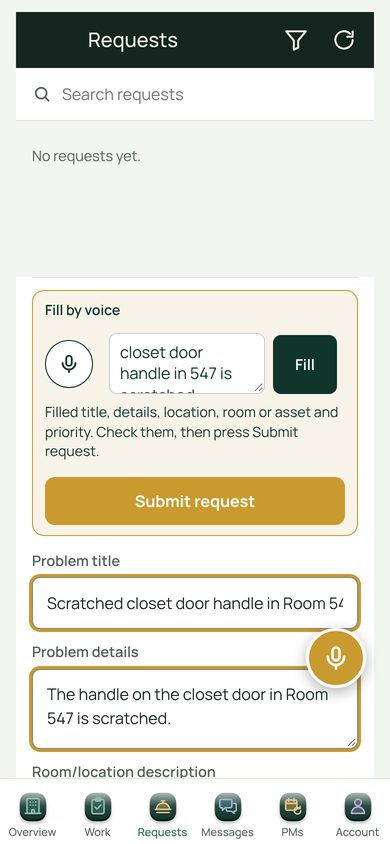
The round brass button with a microphone sits on every screen. Tap it (or hold it) and say what's wrong, for example "The closet door handle in 547 is scratched."
The app writes the title, details, room and priority for you and opens the form filled in. Check it, then press the one big button to send it.
Many forms also have a Fill by voice box at the top that does the same thing.
Not yet tested on every phone: talking into the page works in Chrome on Android. On an iPhone it may not; if the mic button does nothing, use the microphone key on your keyboard instead.
The small speech-bubble button: send feedback
The faded round button with a speech bubble, near the bottom left, sends feedback about the app itself straight to the Owner. It takes a picture of your screen so we can see what you saw.
- Tap the speech bubble.
- Type or say what went wrong or what you'd like changed.
- Send it.
In the way? Drag the button to the other side of the screen. It remembers where you put it.
Things that work the same everywhere
- There are no Save buttons inside a work order or request. Your changes save as you go, and a small Saved note confirms it.
- Photos and files up to 50 MB can be added to work orders and messages: pictures, PDFs, Word, Excel, CSV and MP4 video.
- Lost signal (for example in an elevator)? The app still shows the screens you opened last. Changes you make without signal are kept and sent by themselves when signal comes back. Not yet tested on a real phone
- Signing out: open Account and tap Sign out. Do this on any shared phone.
Requesters · front desk, housekeeping, other departments
Reporting a problem
When you sign in you see one screen: Requests. That's where you report problems and follow what happens to them.
Send a request
- Sign in. You land on the request form.
- Fill in Problem title (short, like "Toilet running").
- Add Problem details if it helps.
- Pick the room or area. Start typing a room number and choose it from the list.
- Set a priority if you know it's urgent. This is optional.
- Tap Submit request.
Faster: tap the brass microphone and just say it. See Report by talking.
What happens next
- The Owner reviews your request and approves or declines it.
- An approved request becomes a work order and goes to a technician.
- You get a notification with the decision, and you can see the status in your Requests list at any time.
Some roles can follow requests but not send new ones. If the form is greyed out, ask the Owner.
Guests
Where the hotel has put up a QR poster, guests can report a problem by scanning it with their phone camera. They don't sign in. Their report arrives as a request for the Owner to approve, the same as yours.
Technicians
Doing the work
The bar along the bottom of your phone has six buttons.
The bottom bar
| Button | What it's for |
|---|---|
| Overview | Where you start: a summary of your work, plus cards for logs that are due and new Logbook notes. |
| Work | The work orders assigned to you or your team. |
| Requests | Report a problem you found, or check ones you sent. |
| Messages | Talk with the team. You can add photos, files and links. |
| PMs | Preventive maintenance: the scheduled checks due. |
| Account | Your details, Manuals & Links, and Sign out. |
Work a job from start to finish
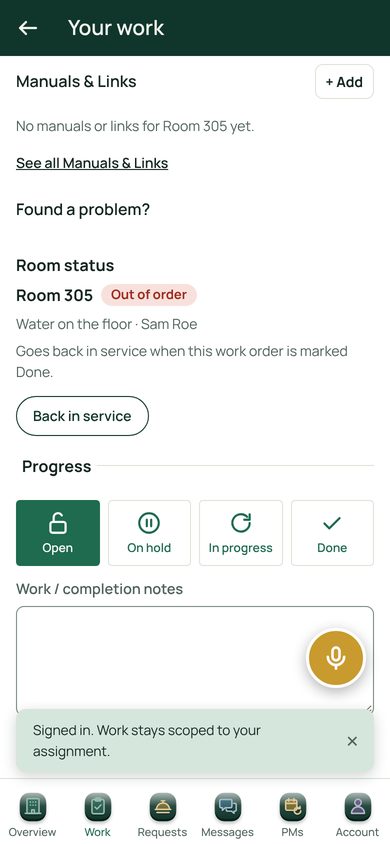
- Tap Work and open the job.
- Tap In progress when you start. Use On hold if you're waiting on parts or access.
- Write what you did in Work / completion notes. Tap the brass mic to say it instead of typing.
- Add a photo of the finished job under Photos and files.
- Work through the checklist if the job has one.
- Tap Done. That's it: one tap.
Done won't go through? Some checklist steps are marked Required. The app lists what's missing and jumps to the first one.
Other things inside a work order
- Manuals & Links shows the manuals, videos and parts lists for that equipment or room. Tap + Add to suggest one; a manager approves it before everyone sees it.
- Found a problem? Spotted something else while you're there? Use this to send a new request without leaving the job.
- Room status shows if the room is out of order. It goes back in service by itself when you mark the job Done. You can also tap Back in service yourself.
Logs and the Logbook
- Logs replace the paper sheets, like ice machine sanitizing and inspections. The card on Overview shows how many are due. Open it, and enter the reading or tick pass or fail.
- Logbook is for notes to the next shift. The Logbook card on Overview shows how many are new. Tap Leave a note for the next shift to write one. Everyone can see who has read each note.
Scan a QR label
Rooms and equipment can have a QR label. Scan it with your phone camera while signed in to see that room or asset: its room status, open work and the last five finished jobs. Tap Report a problem to send a request about it.
Report something you find on your rounds
Tap the brass microphone and say what you see. From a technician's phone this becomes a request for the Owner to approve, not a work order straight away.
Managers, Admins and the Owner
Running the team
You use the Owner page. It opens by itself when you sign in. On a computer the menu runs down the left side, with Settings at the bottom left. On a phone the bottom bar has Overview, Work Orders, Assets, Messages and More; everything else is under More.
Approve requests Owner
- Open Requests (on a phone: More › Requests).
- Open a request and read it.
- Tap Approve. A new work order opens, already filled in from the request.
- Add people or teams, check the details, and create it. Or decline the request.
The person who sent it is told either way.
Work orders
- New work order: tap the green + button, or the brass mic to fill it in by voice.
- Assign to any mix of people and teams with Add people or teams.
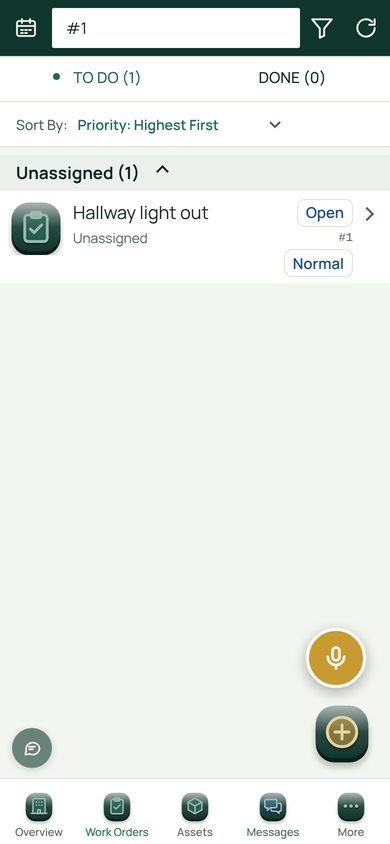
- Find work: switch between To Do and Done, search by title or number, filter, sort, or open the calendar. On a computer you also get Table and Calendar views.
- Change several at once: on a phone, press and hold one work order to start selecting, then tap the others. On a computer, tick them in the Table view. Then use Edit Assignees, Status, Priority or Due Date and tap Apply Changes. Work orders that are already Done, or that someone else changed meanwhile, are skipped and listed.
- Repeating work: set a work order to repeat, and it comes back on schedule. Saved ones are listed under Work Order Templates.
Imported history: every past job from the old system is in the app and searchable.
Rooms
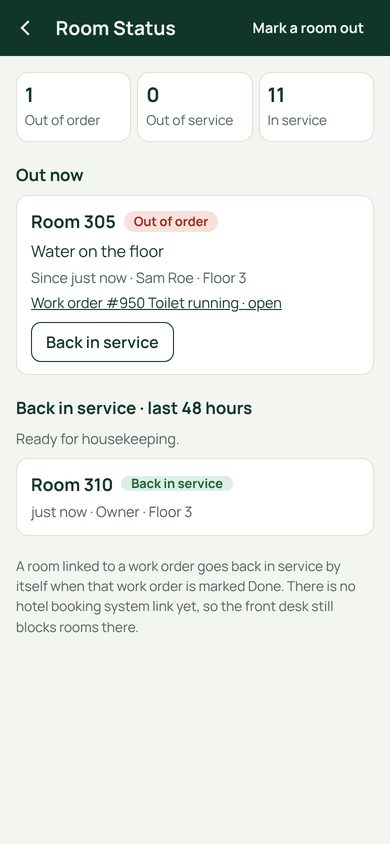
Room Status (More › Room Status) shows which rooms are out of order or out of service. Tap Mark a room out, pick the room, give a reason and an expected-back time. A room linked to a work order goes back in service when that work is Done, and housekeeping gets a "Ready for housekeeping" notice. The front desk still blocks rooms in the hotel's booking system; the two aren't connected yet.
Room PM tracks preventive maintenance across every room: rooms done this cycle, rooms left, and the rooms that have gone longest without a PM listed first. The Owner or an Admin sets the cycle length and which words count as room PM.
Not yet tested on a real phone: the housekeeping "ready" notification.
Response Times
Set targets for how fast requests are approved, and how fast work is started and finished for each priority. The page then shows what's late and how the team is doing over the last 30 days.
It's off until the Owner or an Admin turns it on under Targets. Nothing is timed or sent until then.
Shifts
The weekly schedule for the engineering team (More › Shifts).
- Drag across the week to paint shifts, or use the shift buttons. Drag an edge to resize in Day view.
- Copy & repeat copies last week, or repeats this week ahead.
- Add time off for vacations. The page highlights times nobody is scheduled.
- The On now panel shows who's working right now.
Not yet tested on a real phone: dragging shifts with a finger. It works on a computer.
Compliance logs
Logs replace the paper sheets (More › Compliance). Ready-made sets cover ice machine sanitizing, inspections and fire safety. Use Add log for anything else kept on paper. Each log can have an allowed range or a pass/fail check, and how often it's due.
- A reading out of range or a failed check alerts managers right away. Missed logs are flagged.
- Certificates: add each one with its expiry date. You get reminders at 30 days, 7 days and when it expires.
- Audit export: pick a date range and tap Download CSV for an inspector.
Logbook
Notes between shifts (More › Logbook). Notes from the last 14 days are listed, and each shows who has read it and who hasn't. Mark a note Important to send it to everyone's phone. The writer, the Owner or an Admin can remove a note.
QR labels
Print QR labels for rooms and equipment (More › QR Labels). Scanning one opens that room or asset with its room status, open work (urgent first, and who has it) and the last five finished jobs, plus Report a problem. From your sign-in that makes a work order; from a technician it becomes a request. Only signed-in staff can open a label; the label itself holds just the web address and an ID number.
Equipment, procedures and manuals
- Assets and Locations: every room, area and piece of equipment. Work orders can link to them, but they don't have to.
- Meters: readings you track over time.
- Procedures: step-by-step checklists. + New Procedure can write a first draft for you with AI from a title and up to five manuals. Nothing is saved until you press Create.
- Manuals & Links: the hotel's library of manuals, videos, parts lists and safety sheets. Add a PDF or photo and the AI reads it and fills in the title, maker, model and which equipment it belongs to. The hotel can do 30 AI reads a day, 10 per person. Approve or reject what technicians suggest.
- Categories: the labels used to group work.
Reports and people
- Reporting: work order charts, the details behind them, recent activity, and Export Data (CSV or PDF). Best on a computer.
- Experience: what each person has worked on, built from finished jobs (counts and how recently, never a score). Managers see it if the Owner allows; staff don't see it.
Settings and the team Mostly Owner
- Invite Members: add a person by email (the app emails the invite) or by mobile number (tap Text invite to send the link from your phone). Invite email not yet tested
- Teams / Users: roles, teams and who can do what.
- Guest request page: turn it on or off, print the QR poster, or make a new link (old posters stop working).
- Your name: Settings › General › Account has a Your name box. Set it so your name shows on work orders and notes. It saves when you leave the box.
- Pause Notifications when you're off.
- Feedback inbox (Owner only): everything sent with the speech-bubble button.
- Your hotel (General): hotel details, Export CSV, and importing history (Owner only, with a backup first).
Not in the app yet
Coming soon
This is being built and isn't available today.
- Deleting several work orders at once. You can already change their assignees, status, priority and due date together. Coming soon
Help
Stuck?
- Something looks broken: send it with the speech-bubble button. The screenshot helps a lot.
- Can't sign in, or need your role changed: ask the Owner.
- Email: support@bitandbearing.com